GoDaddy Domain Forwarding Instructions
PLEASE rEAD thE FoLLOwinG inSTRUctioNS CAREFULLY
Effective Date: These forwarding instructions were last updated on September 12, 2022.
STEP 1:
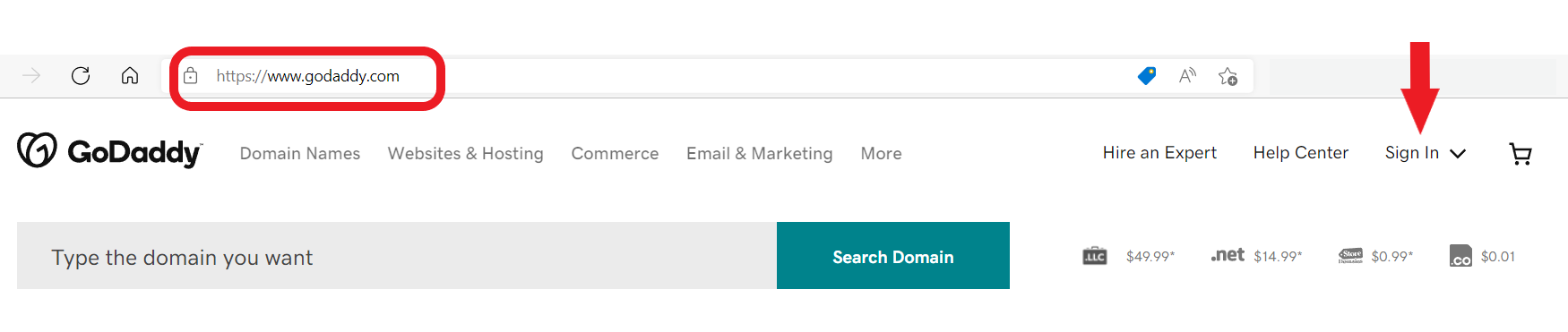
Open your preferred browser and go to https://www.godaddy.com.
Once your browser has opened the GoDaddy website page, move your mouse to the top-right of the page and click on the Sign In heading.
STEP 2:
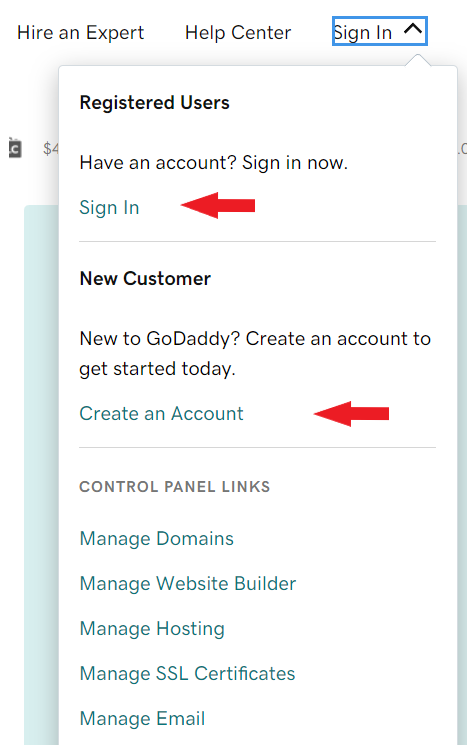
A drop-down option box will appear, and you will need to choose between two options:
- If you already have a GoDaddy account (you've already purchased a domain name) click on Sign In.
- If you have not purchased a domain name, click on Create an Account and go through the steps for searching for and purchasing an available domain name (not covered in these instructions).
STEP 3:
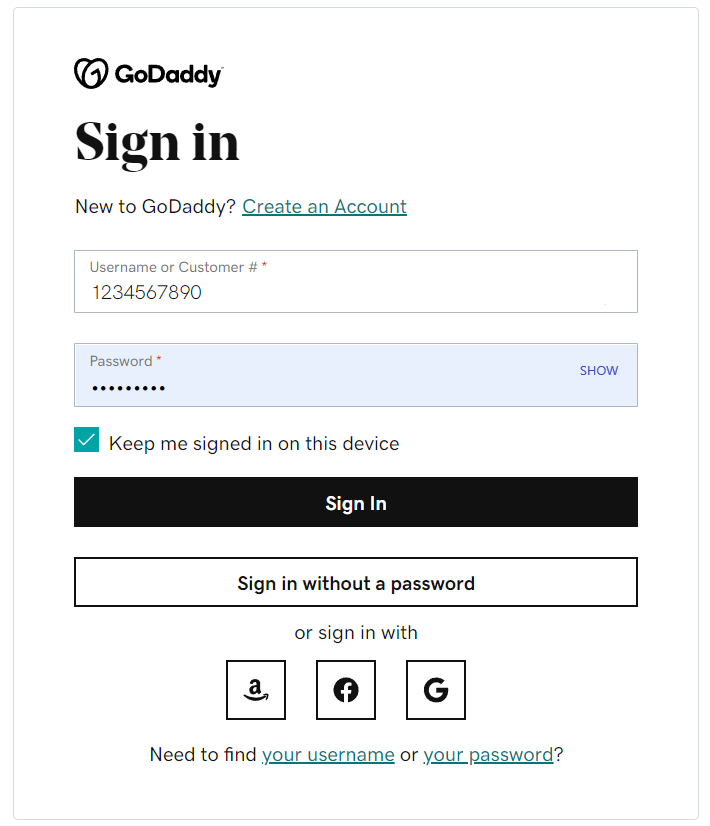
Type in your GoDaddy Customer Number (found on the e-mailed receipt you received from GoDaddy after purchasing your domain name) and password that you chose when you set up your GoDaddy account. NOTE: Your browser may be set to remember your previous logins, so if your Customer Number is already filled in proceed to click on the Sign In button.
STEP 4:
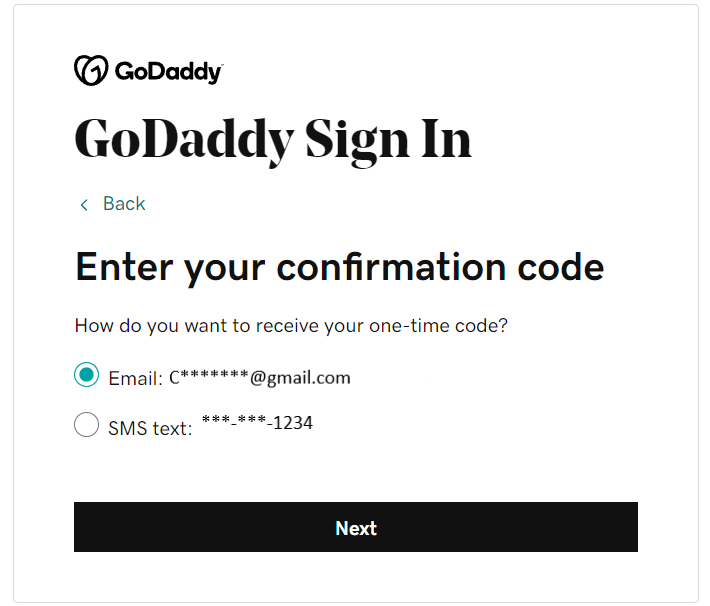
Once you click the Sign In button, GoDaddy will open the Sign In confirmation page where you will need to choose how to receive your confirmation code that will permit you to continue the login process. There will be at least two options - confirmation to your e-mail address or confirmation to your phone by SMS text. NOTE: If you select an SMS text notification, make sure that the number shown is your cell phone number. It will not work to a landline phone.
After making your selection, click the NEXT button. After a minute or so, GoDaddy will send your one-time code to your chosen email address or cell phone number.
STEP 5:
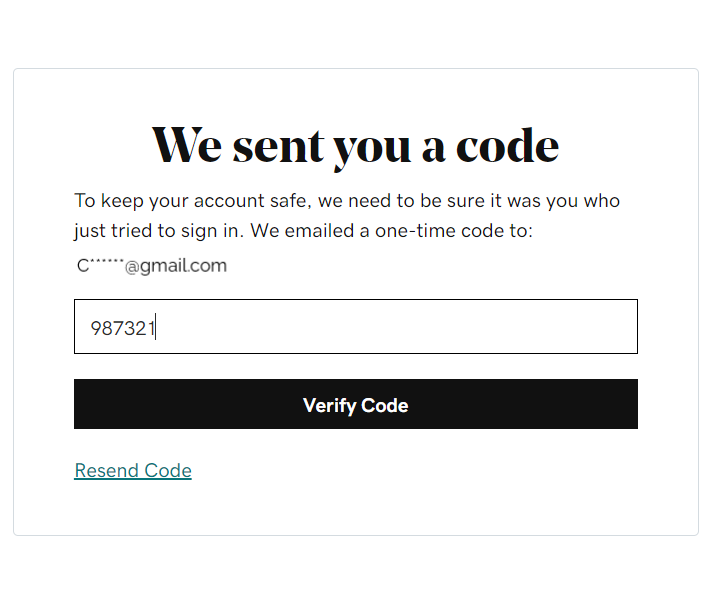
Once you receive the one-time confirmation code, enter it in the space provided and click the Verify Code button. NOTE: The code expires in 20 minutes, so check for it right away. If it does expire, click on the Resend Code link just below the Verify Code button.
STEP 6:
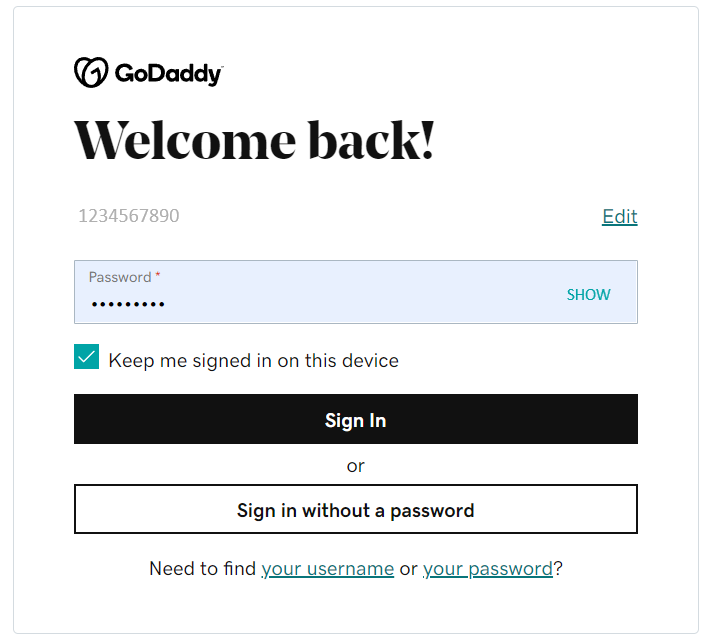
You will then be taken to a Welcome back! page where your Customer Number will be pre-filled and non-editable unless you click on the Edit link.
Click the Sign In button.
STEP 7:
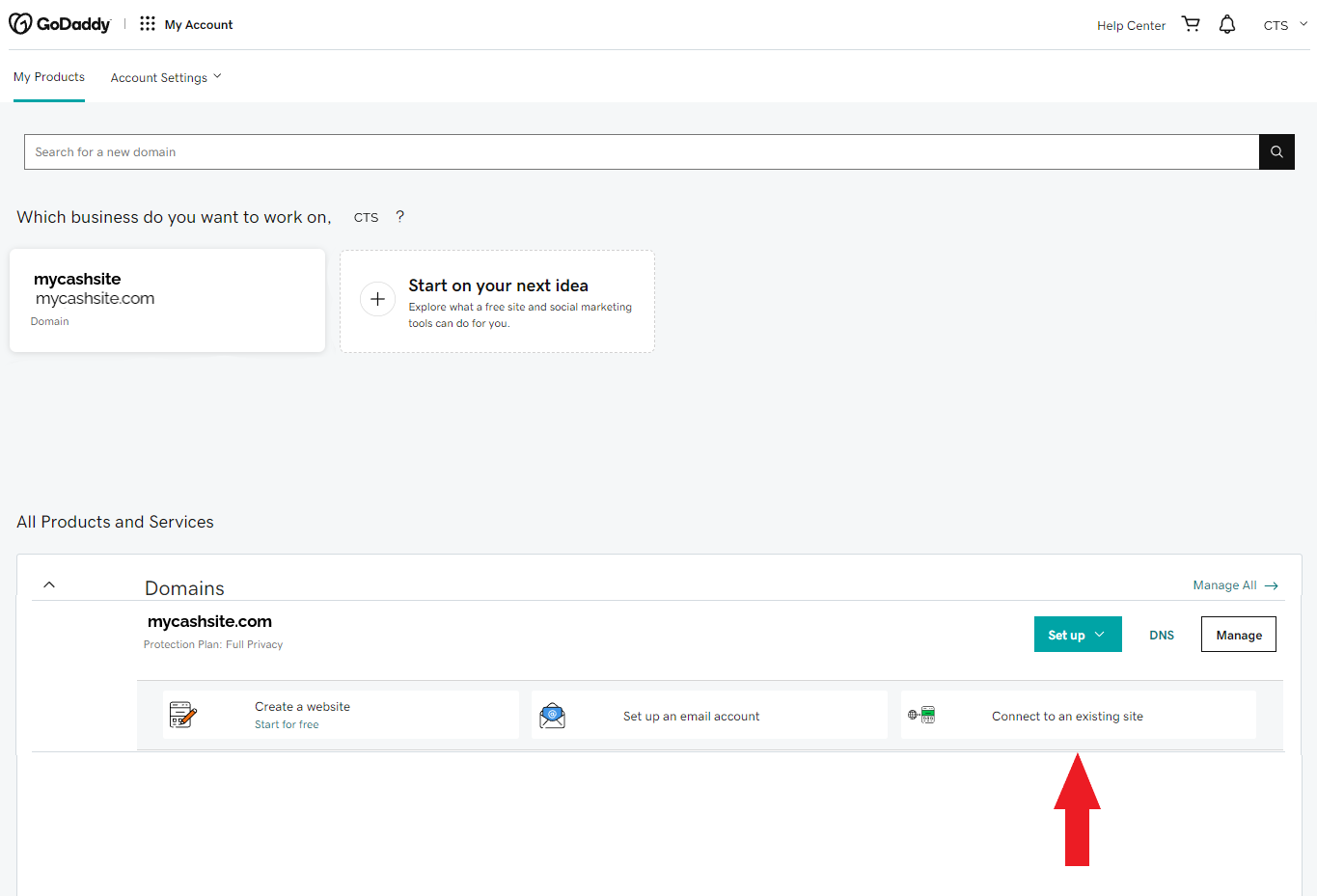
You will now be on the My Account page. Scroll down the page until you see the All Products and Services area. Locate the domain name you want to forward, and click on the Connect to an existing site button.
STEP 8:
The Destinations page will be shown. Scroll down (if needed) to the Forward To Any Site area and click your mouse cursor in the text field.
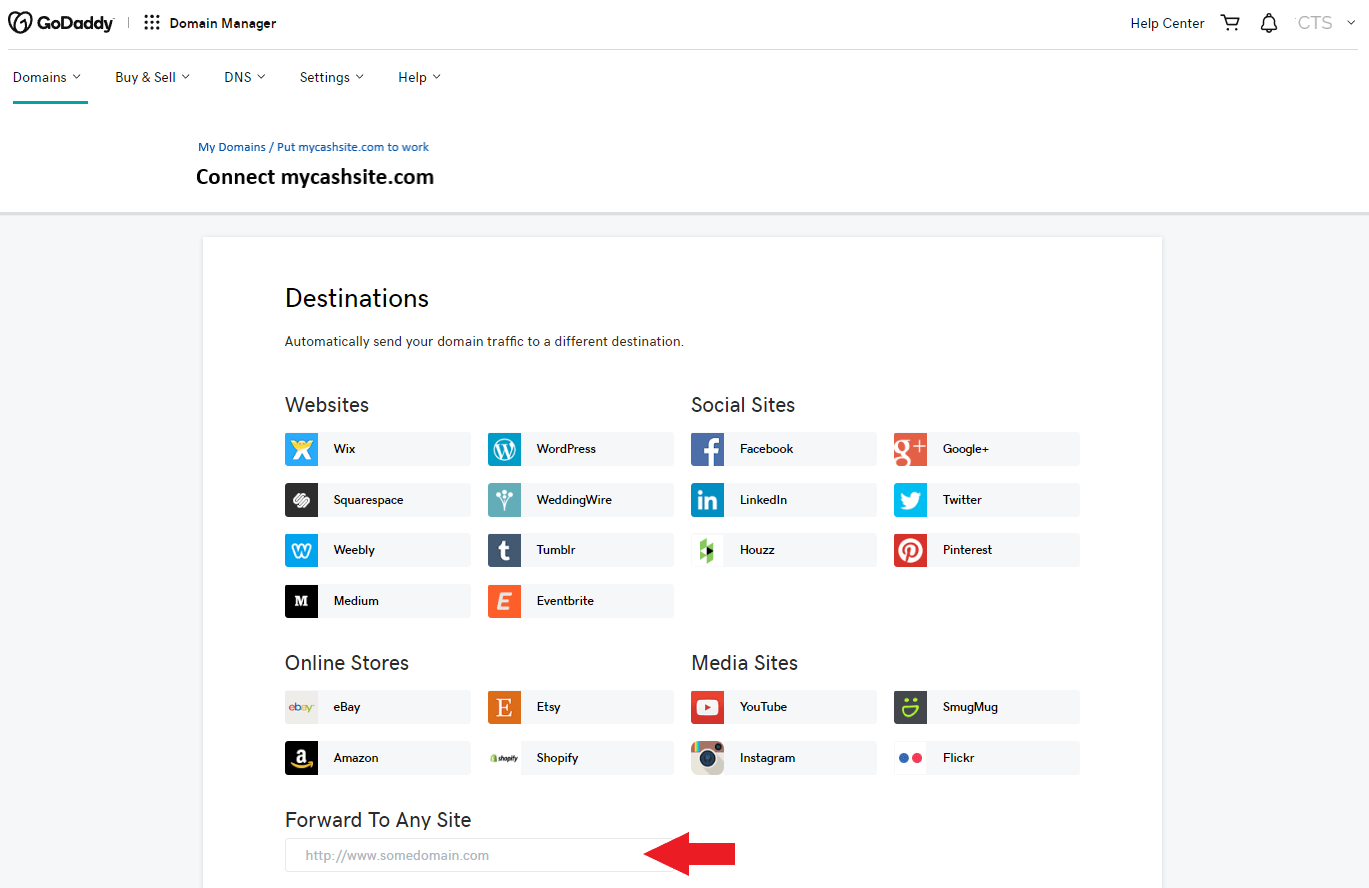
STEP 9:
Type in your actual landing page link (found on the homepage of your CTS Back Office). Make sure that you type https:// followed by www.financialfreedomsites.com/ and then your CTS Member ID (6-digits in length) and click the NEXT button.
EXAMPLE: https://www.financialfreedomsites.com/123456
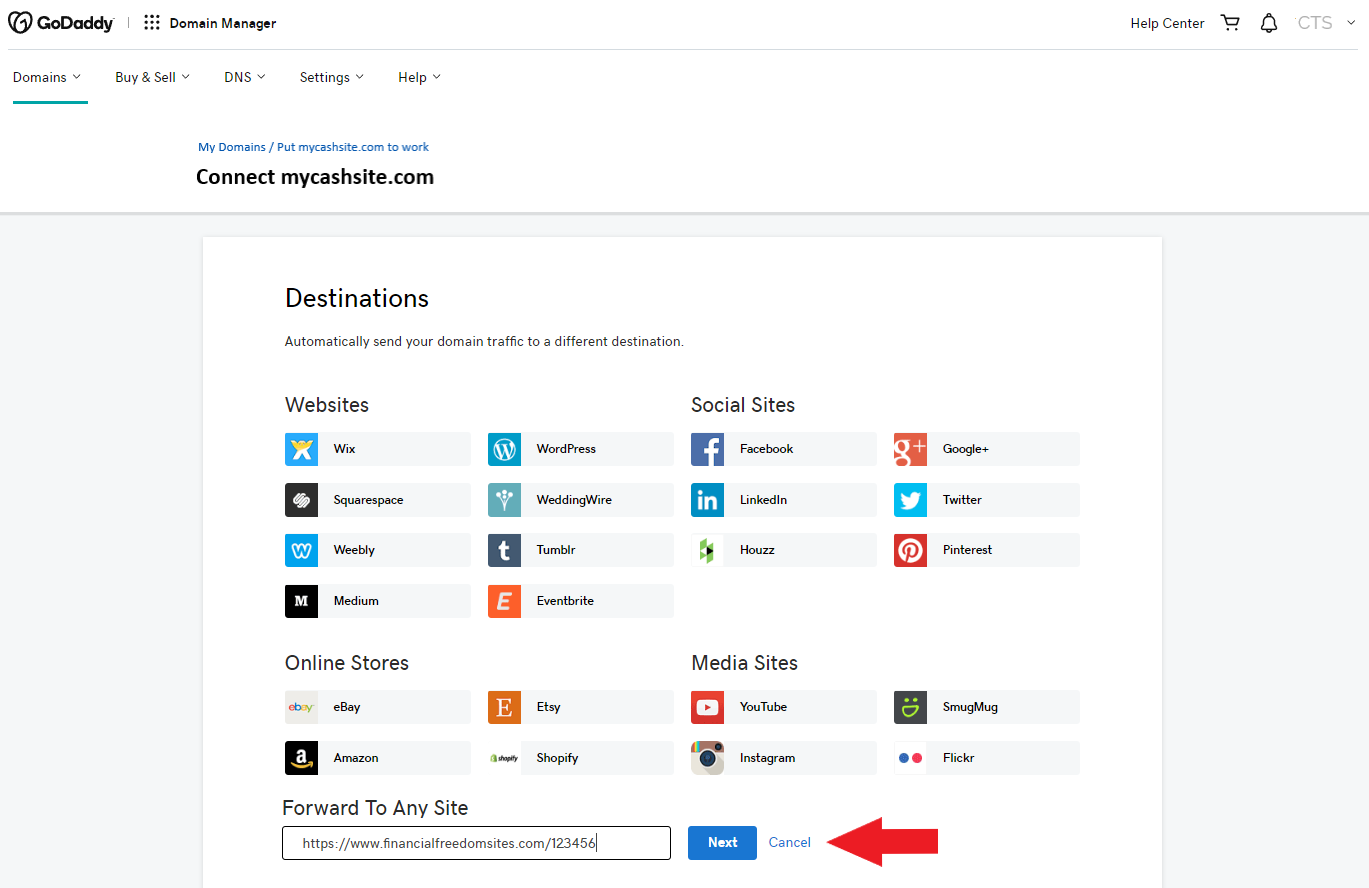
STEP 10:
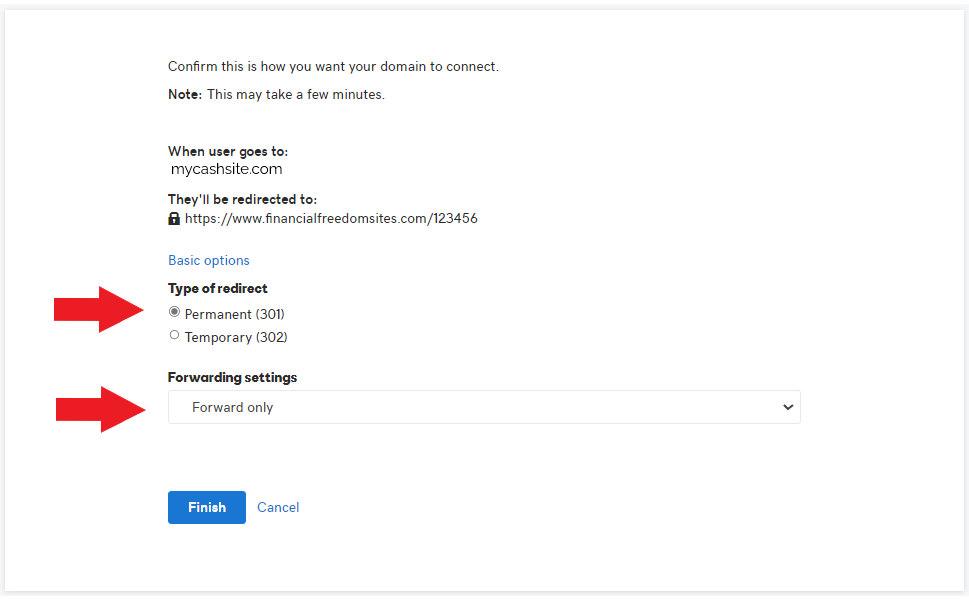
The confirmation page shows where your domain name will be redirected to. Make sure that the URL is correct and then click on the Advanced options text link.
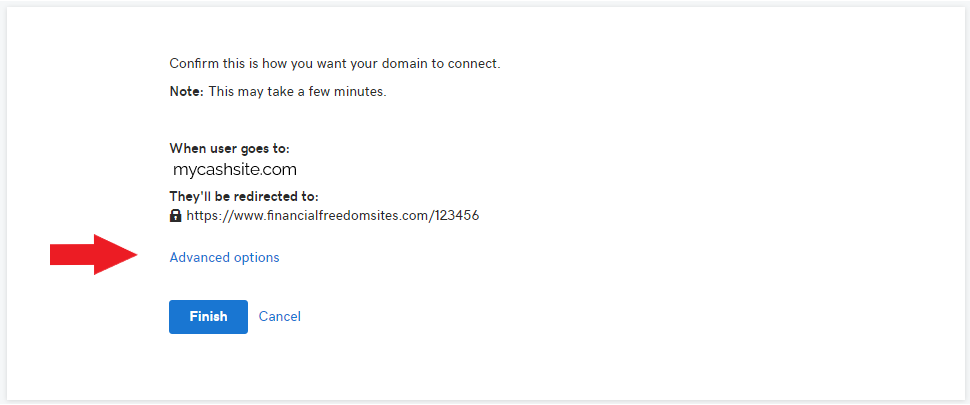
STEP 11:
Under the Type of redirect heading, make sure that Permanent (301) is selected.
Under the Forwarding settings heading, make sure that Forward only is selected.
Click on the Finish button. You can now log out of your GoDaddy account.
After a few minutes (up to an hour), you will be able to test to see if your forwarding was successful. Open your browser and type in your domain name in the address bar (in our example here - www.mycashsite.com), you should be taken to your CTS Landing Page. NOTE: Do NOT type it in Google Search or any other search engine as it will not be found. It can take months to appear in a search engine results.
TROUBLESHOOTING:
If after a few hours you still can't reach your landing page by typing in your domain name, log back into your GoDaddy account and repeat these steps. It may help to remove the forwarding (just delete the information in the Forward To Any Site text field). Alternatively, call GoDaddy's Support Team at 1 (480) 366-3550 and ask them to assist you with your domain name forwarding (redirecting).